Thursday, May 21, 2015

Important SAP Basis Transaction


SAP Transport Management

STMS Central Transport Management System
SE01 Transport and Correction System
SE02 Environment Analyzer
SE03 Transport Utilities
SE06 Set up Workbench Organizer
SE07 Transport System Status Display
SE09 Workbench Organizer (Initial Screen)
SE10 Customizing Organizer

SAP User Management

SU01 User Maintenance
SU01D User Display
SU02 Maintain Authorization Profiles
SU03 Maintain Authorizations
SU05 Maintain Internet users
SU10 User Mass Maintenance
SMLG Maintain Logon Group
SUPC Profiles for activity groups
SUIM Info system Authorizations
PFCG Profile Generator
PFUD User Master Data Reconciliation
S002 Easy System Administration Menu
ZAUT maintenance. Requesting new users, changing authorisation, etc.

Tcodes for Daily Monitoring

SM04 Displays User List
AL08 Displays Current Active Users
SM12 Display and Delete Locks
SM13 Display Update Records
SM21 Displays System Log
SM50 Displays Work Process Overview
SM51 Displays List of SAP Servers
SM66 Displays System Wide Work Process Overview
ST22 Displays ABAP/4 Runtime Error Analysis
ST01 Displays System Trace
ST02 SAP Setups/Tune Buffers
ST04 DB activities (SQL Server Performance Analysis)
ST05 Displays Performance trace
ST06 or ST06N Operating System Monitor
ST10 Displays Table call statistics
ST03 Displays Performance, SAP Statistics, Workload

Important DB transaction

DB01 Analyze exclusive lock waits

DB02 Analyze tables and indexes
DB12 DB Backup Monitor
DB13 DBA Planning Calendar
DB15 Data Archiving: Database Tables
DBACOCKPIT - Contains relevant functionality from the old transaction
codes ST04, DB02, DB13, DB12, DB14, and DB13C

Client Administration in SAP

SCC0  Client Copy
SCC1  Client Copy - Special Selections
SCC2  Client transport
SCC3  Client Copy Log
SCC4  Client administration
SCC5  Client Delete
SCC6  Client Import
SCC7  Client Import – Post Processing
SCC8  Client Export
SCC9  Remote Client Copy
SCCL  Local Client Copy

Background Jobs Administration

SM36 Define Background Job

SM37 Background Job Overview

SM39 Job Analysis
SM49 Execute External OS commands
SM62 Maintain Events
SM69 Maintain External OS Commands

Spool Administration

SPAD Spool Management
SP00 Spool and Relate Area
SP01 Spool Control
SP02 Display output Requests
SP03 Spool: Load Formats
SPCC Spool Consistency check
SPIC  Spool : Installation Check Tables
SP11 TemSe Contents
SP12 TemSe Administration

Tuesday, March 31, 2015

SAP DBTech JDBC: [258]: insufficient privilege

Hi All,

Error while export catalogue object fails with SAP DBTech JDBC: [258]: insufficient privilege error in SAP HANA DB.


Exact error log is:
----------------------------------------------------------------------------------
. 
SAP DBTech JDBC: [258]: insufficient privilege: Can't export view SAPSID.0BW:BIA:SID:0SD_C03. user has no privilege on the underlying objects 
-----------------------------------------------------------------------------------

Solution: 

Login to SAP HANA Studio as the SYSTEM user
In the security area grant the user that is having the issue the system privilege EXPORT


Thanks,
Sharib

Wednesday, January 28, 2015

SAPOSCOL not starting "Cannot create Shared Memory"

Hi All,

Below are the commands to use saposcol

Login as adm

To start,
sidadm>saposcol -l
To stop,
sidadm>saposcol -k
To check status,

sidadm>saposcol -s

But some time we have error messages like "Cannot create Shared Memory".


You can use command

sidadm>saposcol -c to clear the shared memory and try starting saposcol.

In case if it doesnt start after that also, you can try below command:

>ipcs -ma|grep 4dbe

Share memory key for SAPOSCOL is "4dbe"


you can see that shared memory is assigned and the owner is root.

To clean this you need to execute below command:

ipcrm -m {Memory ID}

In above screenshot you can see that the memory id is 4.

So, the command to clear shared memory is

>ipcrm -m 4

In my example, I tried to clear memory with SIDadm user which is not the owner of the memory assigned. So, clear this memory with root user.

Once it is cleared, you can try starting saposcol with the same command which is shown above.

Example is:

And once, it is started you can check the status with below command:

>saposcol -s.

Thanks,
Sharib Tasneem


Saturday, October 25, 2014

Log on to remote server and start database

Hi All,

We had a issue few days back where we installed CI and DB on separate host and things went fine till the time we refreshed system with PRD database.

Error log:

sidadm> startsap
Database SID must be started first
Log on to remote server and start database


Our DB was up and running and listener was also up.

Even R3trans -d and R3trans -x were successful.

sidadm> R3trans -d
This is R3trans version 6.24 (release 721 - 26.09.13 - 20:13:07 ).
unicode enabled version
R3trans finished (0000).
---------------------------------
sidadm> R3trans -x
This is R3trans version 6.24 (release 721 - 26.09.13 - 20:13:07 ).
unicode enabled version

R3trans finished (0000).

Solution:

Check for parameter named "SAPDBHOST" in DEFAULT.PFL.

Entry should be as

SAPDBHOST =  

Also,

Check DEFAULT.PFL if the file name is "DEFAULT" only then name it to DEFAULT.PFL.

There will be an additional parameter in Java server i.e.

j2ee/dbhost=

Thanks,
Sharib


Tuesday, January 14, 2014

OCS package SAPKITL705 does not match the current software component vector

Hi All,

After installation of SAP Solution Manager 7.1 SP 04 we encountered below issue:

OCS package SAPKITL705 does not match the current software component vector

Solution:

Before starting any SP import like SAP Basis SAPKB70210 or any other Support pack, please import CTS_PLUG 200,
GW_CORE 200,
RTCISM 100,
IW_BEP 200,
and IW_FND 250

via SAINT transaction with their SP's.

For more detail please refer to SAP Note: 1827677 - Solution Manager 7.1 SPS : OCS package SAPKITL705 does not match the current software component vector

Thanks and Regards,

Sharib Tasneem 

Thursday, March 7, 2013

Moving SAPDATA files in SAP DB2 DB Server

Hi All,

In this blog I will show you on "How to move SAP DB2 database files from one location to other.

In our case we are facing drive/disk full issue and this can resolved by moving few of the DB files from one drive to another.

Please make sure that source and target drive format is same.

Steps are mentioned below:


Step 1: Stop SAP.
Step 2: Login to the server using db2 
Step 3: Take Offline backup for database and also OS level backup(Recommended).
Step 4: Stop database.
            >db2stop force
Step 5: Open command prompt and move to the kernel location. Generate script file using below command,      
            >brdb6brt -s -bm RETRIEVE_RELOCATE
              eg: brdb6brt -s ST1 -bm RETRIEVE_RELOCATE


Step 6: Move the script file to the location where offline backup is taken.
Step 7: Rename the script file _NODE0000.scr to _NODE0000.clp so that we can edit the file.


Step 8: Create directory structure where you want to place sapdata. And copy the content from old storage location.

Here is the example above, the files from sapdata3 and sapdata4 are moved from D Drive to F Drive, so we copied the files after creating similar directory structure(D:\db2\SID to F:\db2\SID) and copied the content from parent location to target location.

Step 9: Open the file SID_NODE00000.clp in an editor, and modify the storage as shown below, 
            STORAGE_PATH=, 
      Eg: STORAGE_PATH=D:\db2\ST1\sapdata4,F:\db2\ST1\sapdata4


Step 10: Rename the file back _NODE0000.clp to _NODE0000.scr.

Step 11: move to the location where the script file is copied and Execute the below command,
              db2relocatedb -f _NODE0000.scr 
         eg: db2relocatedb -f ST1_NODE0000.scr

Step 12: Now we can delete or rename old storage location,


Step13: Start SAP and DB now and check the new location from DB13 transaction.

Thanks,
Sharib Tasneem


Note: Please try this your own risk. This blog is only intended for sharing knowlodge only. Not to be used in production landscape.


Friday, January 25, 2013

SXPG_COMMAND_EXECUTE failed for BRCONNECT

Hi All,

While running certain jobs in from TX DB13, it was failing in our landscape as our CI and DB are on different host.

After checking the log, I found the below logs:

+++++++++++++++++++++++++++++++++++++++++++

SXPG_COMMAND_EXECUTE failed for BRCONNECT - Reason: program_start_error: For More Information, See SYS
Message no. Q2233

Diagnosis
This message includes variables. No additional information can be specified.
+++++++++++++++++++++++++++++++++++++++++++

Googled this and found many confusing solutions. Also, for your information, our servers were on AIX and I am sure the solution will work on all linux flavors.

Solution:
Follow SAP note number, Note 446172 - SXPG_COMMAND_EXECUTE (program_start_error) in DB13 section 8.

Login to system as root user and execute the command which is shown below in your SAP primary application Server(CI):

rsh -l adm sapxpg 

Ex: rsh -l SIDadm sapxpg
where hostname name is the hostname of the DB Server.

In my case it failed with permission denied error("Permission denied", "Can't establish connection" or a password query). Now, follow the procedure to fix this error.

Open file /etc/hosts.equiv and make an entry about the other host and the user which should be allowed to execute the command in Db server.

Ex:
hostname sidadm
hostname orasid

Where hostname is the hostname of your SAP Primary application Server and "sid" is the SID of your SAP Server.

Cheers,
Sharib Tasneem


Friday, December 7, 2012

Loading of 'SAPNTAB' import package is interrupted with R3load error


Hi All,

While Installing Netweaver 7.31 on HANA DB using SWPM 1.0, I encountered the error below while it went to the ABAP IMPORT stage and it failed while starting the first import.

I checked the Log and found this error below in the import logs in sapinst directory.

+++++++++++++++++++++++++++++++++++++

Loading of 'SAPNTAB' import package is started.

TRACE: 2012-12-05 15:16:16 com.sap.inst.migmon.LoadTask processPackage
Task file generation for 'SAPNTAB' import package:
/usr/sap/PBH/SYS/exe/uc/hpia64/R3load -ctf I /software/51042348/DATA_UNITS/EXP3/DATA/SAPNTAB.STR /tmp/sapinst_instdir/NW731/HDB/INSTALL/NW731/HDB/STD/ABAP/DDLHDB.TPL SAPNTAB.TSK HDB -l SAPNTAB.log

ERROR: 2012-12-05 15:16:16 com.sap.inst.migmon.LoadTask run
Loading of 'SAPNTAB' import package is interrupted with R3load error.
Process '/usr/sap/PBH/SYS/exe/uc/hpia64/R3load -ctf I /software/51042348/DATA_UNITS/EXP3/DATA/SAPNTAB.STR /tmp/sapinst_instdir/NW731/HDB/INSTALL/NW731/HDB/STD/ABAP/DDLHDB.TPL SAPNTAB.TSK HDB -l SAPNTAB.log' exited with return code 2.
For mode details see 'SAPNTAB.log' file.

+++++++++++++++++++++++++++++++++++++

Soln: I Found a solution in SAP note number 1702177 which was relevant to SUM 1.0, but to take in chance I took a backup of file SAPNTAB.STR and tried with the one which is attached to this note and it worked.

Please try it at your Risk.

Thanks,
Sharib Tasneem

Thursday, October 25, 2012

Changing SAPSR3 password using BRTOOLS

Hi All,

There are times when it becomes compulsory to change the password of SAP Schema User. The older technique involves sql query which is not allowed in SAP enviroment.

The best practice to change SAPSR3 or SAP password is through BRTOOLS utility.

Step1: Login to Server as ORASID user.

Step2: brconnect -u / -f chpass -o -p

Ex: brconnect -u / -f chpass -o SAPSR3 -p new_password

In the above example,

-u / -- option means that authorization will be done from OS level user

SAPSR3 -- Represents Schema user in Normal SR3 system

-p --  New Password

Hope this will help many novice consultants.

Cheers,
Sharib Tasneem

How to change Oracle database parameter using BRTOOLS

Hi All,

You can use BRTOOLS to change Oracle DB parameter.

brspace -u / -f dbparam

Cheers,
Sharib Tasneem

Thursday, October 11, 2012

RSORAISQN - Report for improving index Quality in Oracle DB

Hi All,

In this post, I will show users to use SAP report RSORAISQN to improve the index quality of table in Oracle DB. Here we are taking an example of MSEG Table. You can similarly check the index quality of any SAP table.

Note: Please use this report during Off-Peak business hours.

Login to SAP System with appropriate user rights to execute reports.

TX : Se38 - RSORAISQN - Execute.

Step 1: Analysis

You will find a screen as shown below:

Enter the detail as shown in the above example.
Finally Click on execute button and it will ask for a confirmation popup, click "Ok" on that screen.

Step2 : Checking Quality

Once step 1 is done, it will bring you to the main screen as shown above.

Now Enter the detail as shown below to check the index quality of the MSEG table.

And Click on "Execute" button.


The below screen shows, the index quality to of MSEG Table(Example)


If you find index quality to be below 60%, please follow the Step 4 to rebuild it.

Step 3: Improving Index Quality

You can enter the detail as shown below. Please make sure that your ID should be same during analysis.
And click on execute button.


Once, you rebuild the index, you can check to it using Step1 and Step2.

Thanks,
Sharib Tasneem


Monday, October 8, 2012

Error in Phase PREP_INPUT/TOOLVERSION_INI of SUM Tool During EHP5 Upgrade

Error in PREP_INPUT/TOOLVERSION_INI phase while EHP5 Upgrade while using SUM Tool.

Error Log:
++++++++++++++++++++++++++++++++++++++++++++++++++
EXECUTING /usr/sap/SID/SUM/abap/exe/disp+work (disp+work) -V
disp+work: /lib64/libuuid.so.1: no version information available
(required by disp+work)
disp+work: /lib64/libc.so.6: version `GLIBC_2.7' not found (required by
disp+work)
disp+work: /usr/lib64/libstdc++.so.6: version `CXXABI_1.3.3' not found
(required by /usr/sap/SID/SUM/abap/exe/dw_gui.so)
SAPup> Process with PID 19406 terminated with status 1 at
20121007182625!
++++++++++++++++++++++++++++++++++++++++++++++++++
Solution:

Please refer to SAP note 1563102 for its cause and solution

Error in Phase 'PREP_INIT/VALCHK_INI' during EHP5 Upgrade Using SUM Tool

Hi Guys,

We encountered some error during EHP5 Upgrade on our ECC 6.0 System while using SUM Tool.

The Error Log As Follows:
++++++++++++++++++++++++++++++++++++++++++++++++++++++++++
more VALCHK.LOG
1 ETQ201 Entering upgrade-phase "VALCHK_INI" ("20121008214727")
4 ETQ399 Set environment for standard connect:
2 ETQ367 Connect variables are set for standard instance access
4 ETQ399 System-nr = '00', GwService = 'sapgw00' Client = '000'
4 ETQ399 Environment variables:
4 ETQ399   dbs_ada_schema=SAPSID
4 ETQ399   auth_shadow_upgrade=0
1 ETQ200 Executing actual phase 'PREP_INIT/VALCHK_INI'.
1 ETQ399 Phase arguments:
2 ETQ399 Arg[0] = 'HARD-CHK'
1 ETQ359 RFC Login to: System="SID", AsHost="hostname" Nr="00", GwHost="hostname
", GwService="sapgw00"
2 ETQ232 RFC Login succeeded
4 ETQ010 Date & Time: 20121008214727
1 ETQ233 Calling function module "SUBST_HANDLE_UVERS" by RFC
2 ETQ373 parameter "IV_MODE" = "R"
2 ETQ373 parameter "IV_ALL" = " "
2 ETQ399 Table IT_UVERS (#5):
3 ETQ399 "SAP_ABA","700","","","","",""
,"","","","","",""
3 ETQ399 "SAP_APPL","600","","","","","","","","","","",""
3 ETQ399 "SAP_BASIS","700","","","","","","","","","","",""
3 ETQ399 "SAP_BW","700","","","","","","","","","","",""
3 ETQ399 "SAP_HR","600","","","","","","","","","","",""
1 ETQ234 Call of function module "SUBST_HANDLE_UVERS" by RFC succeeded
4 ETQ010 Date & Time: 20121008214727
2 ETQ374 parameter "EV_LEN" = "102"
2 ETQ399 Table IT_UVERS (#5):
3 ETQ399 "SAP_ABA","700","20121007","194751","20121007","194751","I","A","","700
","","",""
3 ETQ399 "SAP_APPL","600","20121007","194751","20121007","194751","I","A","","60
0","","",""
3 ETQ399 "SAP_BASIS","700","20121007","194751","20121007","194751","I","A","","7
00","","",""
3 ETQ399 "SAP_BW","700","20121007","194751","20121007","194751","I","A","","700"
,"","",""
3 ETQ399 "SAP_HR","600","20121007","194751","20121007","194751","I","A","","600"
,"","",""
1AETQ228 Detected invalid (temporary) start release "SAP_ABA"
1EETQ399 Last error code set is 'SAP_ABA is in an undefined state, that is not s
afe to be upgraded, reason Upgrade wasn't completed - Call the SAP Support'
1EETQ204 Upgrade phase "VALCHK_INI" aborted with severe errors ("20121008214727"

++++++++++++++++++++++++++++++++++++++++++++++++++++++++++
To fix this error, Please follow the step below:
Move to the location:
cd /usr/sap/SID/SUM/abap/bin

Execute the command: ./SAPup reset prepare

And then, once this command is executed successfully, delete SUM directory and extract fresh SUM files in the same location and continue.

Cheers,
Sharib

Note: Please refer to SAP notes for more detail.  

Monday, July 2, 2012

Oracle Database Backup using Brtools on a Disk

Hi All,

This blog contains steps with screenshot which shows you the steps to take Oracle DB backup on Disk.

Please stop your SAP application server before you proceed with your DB backup activities and take a backup of initSID.sap file before you modify it manually.

Step1: Modify the initSID.sap file present in the location :\oracle\SID\11202\database (windows) or /oracle/SID/112_64/dbs(Linux).

Change the entries as shown in the figure above(Change "backup_dev_type = disk" and "backup_root_dir = :\location" and save and quit.

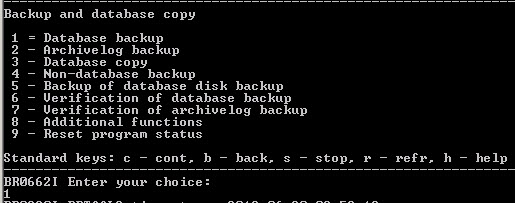
Step2: Start Brtools utility from the command prompt by logging in as SIDadm on windows and oraSID  in Linux.


Enter "4" (Press Enter Key)


Enter "1" (Press Enter Key)


Enter "c" (Press Enter Key)


Enter "c" (Press Enter Key)


Enter "c" (Press Enter Key)


It will show you the summary of all the files which it will copy during this backup activity, Press "c" and continue.


You can see the progress of your backup as shown in the screen above.

Finally once your backup is over, you can see the return code 0 on the screen which shows that your backup was successfull.

Monday, January 24, 2011

Setting up Operation modes

Hi All,

This blog will show "How to setup Operation Modes in SAP"

Step1: Tx RZ04.

Step2: Click on "Operation Mode --> Create" (For Creating Operation mode).

Step3: Enter the detail, like Operation mode(Name of operation mode), Description(Anything), and Monitoring Properties variant (Select SAP-DEFAULT or *)and click on "SAVE" button it.


Step4: Repeat step number 2 & 3 for creating more operation mode.

Step5: Steps for Creating Instance and distributing work process.
  • Click on Opertaion Modes --> Maintain Instance --> Operation Mode View.


  • After that Click on Create New Instance and enter the following detail.
  • Hostname of your SAP Server.
  • Instance Number
  • Start Profile
  • Instance Profile
  • And SAVE it.


Step6: Maintaining Time table for Operation Modes.
  • Now Move to Tx SM63.
  • Select Normal Opertaion(24 Hrs).
  • And Click on "Change".


  • Select the time range by double clicking on the duration and Click on "Assign".
  • And Select Operation modes and Click on "SAVE" button.
Now you have setup the operation mode.


Note: This blog is only for your reference, please refer to SAP note or SAP document for exact steps.

Tuesday, December 21, 2010

Renewing SAP Router License


Hi All,
Here are the Steps of renewing the SAP Router License.

Step1: Login as sncadm user. Take a Backup of folder where SAP Router is installed.
Ex: D:\usr\sap\saprouter to D:\usr\sap\saprouter_backup.

Step2: Execute the below command

sapgenpse get_pse -v -r certreq1 -p local.pse

It will ask for PIN, so enter any 4 digit number and remember this, as you may need it in at other places during renewal. Easy to remember code is 1234.

Also enter the distinguish name.(You can find the distinguish name at https://websmp203.sap-ag.de/saprouter-sncadd )

Now copy the content of “certreq“ .(Either to the clipboard or to the notepad)

Step3: At Service Market Place logon to https://websmp203.sap-ag.de/saprouter-sncadd -----> SAPRouter Certificates -----> Apply Now.

On the next page Click on "Continue"

After that Paste the Contect into the Edit Box(Paste the content from -----BEGIN CERTIFICATE REQUEST----- to -----END CERTIFICATE REQUEST----- ).

Now Click on "Request Certificate".

Copy the entire content of the Certificate from Begining to End to a text file named “srcert.txt“ and copy this file to the same location where it was present. Rename it to "srcert".

Ex: D:\usr\sap\saprouter

Step4: Install the certificate in our saprouter by running

:\usr\sap\saprouter>sapgenpse.exe import_own_cert -c srcert -p local.pse


Now we have to create the credentials for the SAProuter with command

:\usr\sap\saprouter>sapgenpse seclogin -p local.pse -O

This will create a file called cred_v2 in the same directory.

Step5: Check if the certificate has been imported correctly

:\usr\sap\saprouter>Sapgenpse get_my_name -v -n Issuer